
Router troubleshooting tips
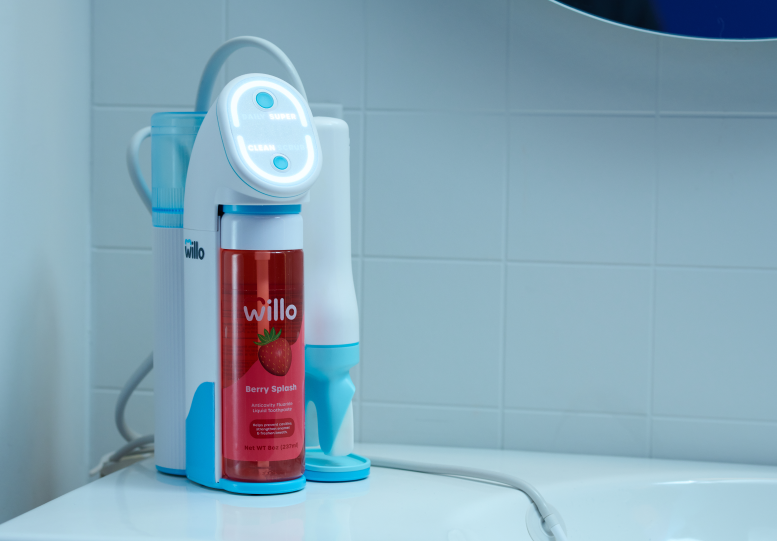
If your connection is repeatedly dropping, your router may be blocking your Willo. You may need to “whitelist” your device so your router allows it to connect.
Find Your Willo MAC Address
- Open the Willo app
- Go to Settings
- Tap Manage Brushes
- Locate the MAC address displayed on screen
Copy this MAC address before moving to the next step.
Step 1: Add the Brush to Your Router Whitelist
Log in to Your Router
- Open a web browser on your phone or computer
- Enter 192.168.0.1 or 192.168.1.1
- Press Enter
-
Log in using your router username and password
- Default is often admin / admin
- Check your router label if unsure
Add MAC Address
- Find MAC Filtering or Whitelist under Wireless or Security settings
- Add your brush’s MAC address
- Save changes
- Restart your router
Reconnect
Open the Willo app and try pairing again.
Step 2: Turn Off Firewall If Needed
If you cannot log in or whitelisting did not work, try temporarily turning off your router firewall.
Disable Firewall
- Log in to your router admin panel
- Navigate to Security or Firewall Settings
- Turn the firewall Off temporarily
- Save changes and restart the router
Reconnect
Open the app and try pairing again.
Important
Turn the firewall back On after successful pairing.
Still Not Connecting?
- Restart your phone, router, and brush
- Move closer to your router
- Make sure your app is up to date
- Contact your internet provider or router manufacturer if needed
Router-Specific Instructions
Netgear
Whitelist
- Go to 192.168.1.1 or routerlogin.net
- Log in
- Navigate to Advanced > Advanced Setup > Wireless Settings
- Enable Access Control or MAC Filtering
- Add the MAC address, save, and restart
Firewall
- Go to Advanced > Security > Firewall Rules
- Disable the firewall temporarily
- Restart the router and try pairing again
Linksys
Whitelist
- Go to 192.168.1.1 or myrouter.local
- Log in
- Navigate to Wireless > MAC Filtering
- Select Permit Only Listed Devices
- Add the MAC address and save
Firewall
- Go to Security > Firewall
- Turn off the firewall temporarily
- Restart the router and try pairing again
TP-Link
Whitelist
- Go to 192.168.0.1 or tplinkwifi.net
- Log in
- Navigate to Wireless > MAC Filtering
- Select Allow Listed Devices
- Add the MAC address, save, and restart
Firewall
- Go to Advanced > Security > Firewall
- Disable the firewall temporarily
- Restart the router and try again
ASUS
Whitelist
- Go to 192.168.1.1
- Log in
- Navigate to Wireless > MAC Filter
- Set mode to Accept
- Add the MAC address, save, and restart
Firewall
- Go to Advanced Settings > Firewall
- Disable the firewall temporarily
- Restart the router and try again
Spectrum
Whitelist
- Go to 192.168.1.1 or 192.168.0.1
- Log in
- Navigate to Advanced Settings > MAC Filtering
- Add the MAC address and save
- Restart the router
Firewall
- Go to Advanced > Security > Firewall Settings
- Disable the firewall temporarily
- Restart the router and try again
Xfinity
Whitelist
- Go to 10.0.0.1
- Log in
- Navigate to Gateway > Connection > Wi-Fi
- Select MAC Filtering > Allow
- Add the MAC address and save
Firewall
- Go to Gateway > Firewall
- Disable the firewall temporarily
- Restart the router and try again
Verizon
Whitelist
- Go to 192.168.1.1 or myfiosgateway.com
- Log in
- Navigate to Advanced Settings > Network Settings > MAC Filtering
- Add the MAC address and save
- Restart the router
Firewall
- Go to Advanced Settings > Firewall
- Disable the firewall temporarily
- Restart the router and try again